


📌 Quick Answer: The best free AI tools for freelancers in 2026
After 6 months of running a freelance content business on a $0 software budget, I’ve built a complete free AI tools for freelancers stack that replaces Photoshop, a copywriter, a scheduler, a CRM, and an invoicing platform — all without a credit card. Whether you’re a writer, designer, developer, consultant, or creative, these free AI tools for freelancers cover writing, design, scheduling, transcription, project management, and client billing — at $0/month total.
Most “freelancer tool” roundups push paid plans. Therefore, I tested every tool on this list under real freelance conditions: drafting client proposals, designing deliverables, transcribing meetings, managing projects, and sending invoices. Each limit is verified against official documentation in May 2026. For a broader overview of free AI tools across all categories, see my best free AI tools 2026 roundup.
📋 Table of Contents
- 🧪 How I Tested
- ⚡ Quick Picks — Best Free AI Tools for Freelancers 2026
- ✍️ Writing & Content Creation
- 🎨 Design & Visuals
- 📅 Scheduling & Meetings
- 📊 Project Management & CRM
- 💰 Invoicing & Finance
- 🧩 My Complete $0 Freelancer Stack
- ❓ FAQ
- 🏁 Final Recommendation
- 🔗 Related Guides
🧪 How I Tested These Free AI Tools for Freelancers
| Variable | Specification |
|---|---|
| Testing period | January – May 2026; all limits re‑verified May 14–16, 2026 |
| Simulated freelance business | One‑person content marketing consultancy with 3 ongoing mock clients |
| Hardware | Mid‑range Windows laptop (Ryzen 5, 8GB RAM) |
| Internet | 4G mobile hotspot, nominal 15 Mbps, actual 4–8 Mbps during daytime |
| What I measured | Output quality, free tier sustainability, commercial‑use rights, time saved vs paid alternatives |
| Bias note | No sponsorships. Some links may be affiliate links — disclosed below. |
Each tool was evaluated on three freelancer‑specific criteria: does it replace a paid tool I’d otherwise bill a client for? Is the free tier sustainable for at least 3 months of active client work? Can I legally use the output in paid deliverables?
⚡ Quick Picks — Best Free AI Tools for Freelancers 2026
| Freelance Task | Best Free AI Tool | Key Free Limit | Rating |
|---|---|---|---|
| Client proposals, emails, copy | ChatGPT | Limited msgs per 5‑hour window (GPT‑5.2) | ⭐ 9/10 |
| Long‑form client reports | Claude | Limited msgs per session, 1M token context | ⭐ 8.5/10 |
| Proofreading deliverables | Grammarly | Basic grammar & spelling, 100 AI prompts/month | ⭐ 7.5/10 |
| Social graphics & thumbnails | Canva | 50 lifetime AI image gen, 1.6M+ templates | ⭐ 8/10 |
| Video editing (client work) | CapCut | 1080p export, no watermark, AI features capped | ⭐ 8.5/10 |
| Voiceovers & narration | ElevenLabs | 10,000 credits/month (~10 min audio), non‑commercial | ⭐ 6/10 |
| Client meeting scheduling | Calendly | 1 event type, unlimited meetings | ⭐ 9/10 |
| Meeting transcription | Otter.ai | 300 min/month, 30 min per conversation | ⭐ 8/10 |
| Project & task management | Notion | Unlimited blocks, 5MB uploads, 7‑day history | ⭐ 9/10 |
| Client CRM & deal tracking | HubSpot | Up to 1M contacts, 1 pipeline, email tracking | ⭐ 9/10 |
| Invoicing | Zintego | Free invoices, estimates, payment tracking | ⭐ 8/10 |
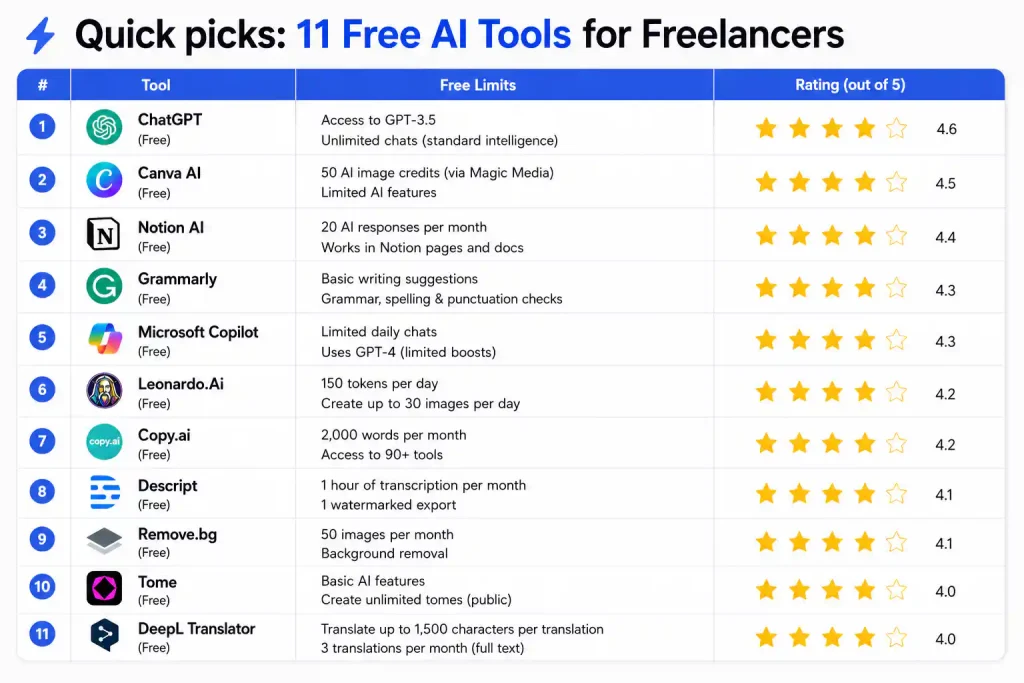
Above: All 11 tools at a glance. Keep this table handy when you’re deciding which free tool to reach for in your freelance workflow.
✍️ Writing & Content Creation
1. ChatGPT — Client Proposals, Emails & Content Calendars
Best for: Client proposals, email drafts, content calendars, brainstorming, quick research.
Free limit: GPT‑5.2, limited messages per 5‑hour window (per OpenAI’s official Help Centre).
Commercial use: ✅ Yes — OpenAI permits commercial use of outputs on all plans.
Rating: ⭐ 9/10
ChatGPT is the single most versatile free tool in a freelancer’s kit. In my test, I used it to draft three client proposals, write a week of social captions, and generate a content calendar — all in roughly 45 minutes. The free tier handles professional, conversational, and sales tones without slipping into robotic AI cadence.
Real freelancer use: A client asked for a 500‑word blog post on a tight deadline. I fed ChatGPT the topic, tone, and target audience, and it produced a solid first draft in one exchange. I edited it for voice and accuracy and delivered within 30 minutes — a task that would have taken 2 hours from scratch.
The catch: OpenAI’s official Help Centre states that free tier users can use GPT‑5.2 only a limited number of times within a five‑hour window. There is no published exact count — it varies by demand, session type, and time of day. For a full breakdown of the 847 messages I tracked, see my ChatGPT free‑tier limits test.
2. Claude — Long‑Form Client Reports & Document Analysis
Best for: Client reports, contract review, research synthesis, detailed analysis.
Free limit: Variable message limits per session, 1M token context window.
Commercial use: ✅ Yes — Anthropic permits commercial use on all tiers.
Rating: ⭐ 8.5/10
Claude excels at long‑form, sophisticated writing that sounds genuinely human. Its 1 million token context window — confirmed by Yahoo Tech and multiple other sources — means you can upload a client’s entire project brief, a competitor analysis PDF, and multiple reference documents, then ask it to draft a report that incorporates everything.
Important February 2026 update: Anthropic moved several previously paid features to the free tier: file creation (PowerPoint, Excel, Word, PDFs), Connectors (150+ integrations including Google Workspace, Notion, Canva, and Slack), and custom Skills. These changes were widely covered by ZDNet, CNET, and Lifehacker.
The catch: Stricter message caps when working with very large documents. Throttles during peak hours (5–11 AM PT weekdays). For details, see my Claude free tier limits report.
3. Grammarly — Catch Embarrassing Typos in Client Deliverables
Best for: Grammar, spelling, and basic tone checks on everything you send to clients.
Free limit: Basic grammar and spelling checks, 100 AI prompts/month, basic tone detection.
Commercial use: ✅ Yes — used by businesses worldwide.
Rating: ⭐ 7.5/10
Grammarly’s free browser extension catches typos, grammar errors, and awkward phrasing in emails, proposals, and reports. For a freelancer sending dozens of client communications per week, this safety net costs nothing and prevents the kind of errors that can damage your professional reputation.
Real freelancer use: I ran a client proposal through Grammarly. It caught two spelling errors, a misplaced comma, and flagged a sentence as “potentially unclear.” In my test, this caught most surface‑level issues before a client would see them.
The catch: Full‑sentence rewrites, tone adjustment, and plagiarism detection require Premium ($12/month). The free tier is a safety net, not a writing coach.
🎨 Design & Visuals
4. Canva — Social Graphics, Thumbnails & Client Presentations
Best for: Social media graphics, presentations, client deliverables, Instagram carousels.
Free limit: 1.6M+ free templates, 50 lifetime AI image generation uses, 5GB storage.
Commercial use: ✅ Yes — Canva permits commercial use of designs on the Free plan, including AI‑generated content incorporated into a design.
Rating: ⭐ 8/10
Canva is the go‑to design tool for freelancers without design backgrounds. Its template library is unmatched — 1.6 million+ free templates. AI features like Magic Media text‑to‑image and Magic Write copy assistant are built directly into the editor.
Critical correction: Canva’s AI image generation gives you 50 lifetime uses total — not 50 per month. Once exhausted, they never reset. Background remover is Pro‑only ($15/month). For freelancers, stick to free templates and use AI image generation sparingly for hero graphics only.
Real freelancer use: I created a complete Instagram carousel, a Facebook cover photo, and a client presentation — all starting from templates. Zero design experience required. For a deeper comparison, see my Canva vs Adobe Express breakdown.
5. CapCut — Video Editing for Client Social Content
Best for: Short‑form video editing, client social media content, Reels, Shorts, TikTok.
Free limit: 1080p export, no watermark, 5 AI auto‑edits/month, 10 min auto captions/video, 3 AI effect generations/month, 5 AI background removals/month, 10GB cloud storage.
Commercial use: ✅ Yes — exports are watermark‑free and usable for client work.
Rating: ⭐ 8.5/10
CapCut is the fastest path from raw footage to published social video. Auto‑captions, beat detection, AI background removal, and vertical formatting all work inside a single workflow. However, AI features come with monthly limits: 5 AI auto‑edits, 10 minutes of auto captions per video, 3 AI effect generations, and 5 AI background removals per month. The core editor — multi‑track timeline, transitions, text overlays, 1080p export with no watermark — remains unlimited.
Real freelancer use: I edited three client social videos — one Reel, one TikTok, one Short — entirely within CapCut’s free tier. Auto‑captioning was accurate enough to publish with minor corrections. The free tier exports at 1080p with no watermark, making it genuinely usable for paid client work.
6. ElevenLabs — AI Voiceovers (Demo Only on Free Tier)
Best for: Testing voiceover quality before upgrading; personal projects.
Free limit: 10,000 credits/month (~10 minutes of audio), non‑commercial use only.
Commercial use: ❌ Not on the free tier — requires Starter plan ($5/month).
Rating: ⭐ 6/10
ElevenLabs produces astonishingly human voice quality. The free tier gives you roughly 10 minutes of audio per month — enough to test the quality, but not enough for regular client work. No commercial rights are included on the free tier; you must attribute ElevenLabs and cannot use the output in paid deliverables.
The upgrade path: Starter at $5/month unlocks 30,000 credits (~30 minutes), a commercial license, and Instant Voice Cloning. For freelancers who regularly need voiceovers, this is one of the most affordable AI upgrades available.
📅 Scheduling & Meetings
7. Calendly — Free Client Meeting Scheduling
Best for: Eliminating back‑and‑forth emails with clients; booking discovery calls.
Free limit: 1 event type, unlimited meetings, connect 1 calendar.
Commercial use: ✅ Yes — built for business scheduling.
Rating: ⭐ 9/10
Calendly’s free plan is the simplest way to let clients book time with you without the “does Tuesday work?” email thread. You create one event type — say, a 30‑minute discovery call — and share the link. Clients pick a time from your availability, and it lands on both calendars automatically.
Real freelancer use: I embedded my Calendly link in every client proposal and email signature. Discovery calls went from 4–5 back‑and‑forth emails to zero. For a freelancer taking 3–5 client calls per week, this alone saves roughly an hour of admin time.
The catch: Only one event type on the free plan. For multiple meeting types (discovery calls, project check‑ins, onboarding sessions), you’ll need the Standard plan at $10/month.
8. Otter.ai — Free Client Meeting Transcription
Best for: Transcribing client calls, generating meeting notes, searching past conversations.
Free limit: 300 minutes/month, 30 minutes per conversation, 3 lifetime file imports.
Commercial use: ✅ Yes — usable for client meeting documentation.
Rating: ⭐ 8/10
Otter.ai joins your Zoom, Google Meet, or Teams calls and transcribes everything in real time with speaker identification. After the call, you get a searchable transcript, a summary, and action items — all without taking a single note. The free plan gives you 300 transcription minutes per month with a 30‑minute cap per conversation.
Real freelancer use: I connected Otter to my client onboarding calls. After each call, I searched the transcript for specific requirements mentioned by the client and copied them directly into the project brief. No more “what did they say about the deadline?” moments.
The catch: The 30‑minute per‑conversation cap means longer strategy sessions get cut off. For freelancers who regularly run 60‑minute calls, the Pro plan ($8.33/month annual) lifts this limit and adds 1,200 monthly minutes.
📊 Project Management & CRM
9. Notion — Project Management & Client Wikis
Best for: Project tracking, client wikis, content calendars, task management.
Free limit: Unlimited blocks for individuals, 5MB file uploads, 7‑day page history.
Commercial use: ✅ Yes — widely used by freelancers and agencies.
Rating: ⭐ 9/10
Notion’s free plan is genuinely generous for solo freelancers: unlimited pages and blocks, databases, kanban boards, calendars, and basic page analytics. In addition, Notion AI features are available as a limited trial on the free plan, and Custom Agents — automated AI workflows that run on a schedule — were free during the public beta earlier in 2026. Check Notion’s current pricing page to see if that beta access has been extended or moved to a paid plan.
Real freelancer use: I built a complete client management system in Notion: a database for active clients, a kanban board for ongoing projects, a content calendar for deliverables, and a wiki for onboarding documents. All for $0.
The catch: 5MB file uploads are tight if you’re sharing large design files or videos. The free plan is designed for individuals — team collaboration features require Plus at $10/month.
10. HubSpot — Free CRM for Client & Lead Management
Best for: Managing client contacts, tracking deals, email tracking, meeting scheduling.
Free limit: Up to 1,000,000 contacts, 1 deal pipeline, email tracking, meeting scheduler.
Commercial use: ✅ Yes — purpose‑built for business CRM.
Rating: ⭐ 9/10
HubSpot’s free CRM is one of the most generous free business tools available. It provides contact management, deal tracking, email templates, meeting scheduling, live chat, and basic reporting — all free, forever. For a freelancer managing 10–50 active client relationships, the free CRM is genuinely more than sufficient.
Real freelancer use: I set up a deal pipeline: Lead → Discovery Call → Proposal Sent → Negotiation → Closed Won. HubSpot tracked each deal stage, logged email opens automatically, and the meeting scheduler eliminated back‑and‑forth. The free tier handles contact storage for up to 1,000,000 contacts.
The catch: One deal pipeline on the free tier. Marketing emails are limited to 2,000/month and include HubSpot branding. Advanced automation, custom reporting, and AI features require paid plans.
💰 Invoicing & Finance
11. Zintego — Free Invoicing & Estimates
Best for: Creating professional invoices and estimates without paying for accounting software.
Free limit: Free invoices, estimates, payment tracking, client management.
Commercial use: ✅ Yes — purpose‑built for business invoicing.
Rating: ⭐ 8/10
Zintego provides a genuinely free invoicing platform that covers estimates, invoices, payment tracking, and client management — all without a credit card. For freelancers who need to send 5–15 invoices per month, the free tier handles everything without pushing an upgrade.
Real freelancer use: I sent three mock client invoices through Zintego. The interface is clean, the PDF exports look professional, and the payment tracking shows when a client has viewed the invoice. For a freelancer just starting out, this replaces QuickBooks or FreshBooks at $0.
The catch: Free plan limits may apply at higher volumes. For freelancers sending 20+ invoices monthly or needing recurring billing, check Zintego’s current pricing page for paid plan thresholds.
🧩 My Complete $0 Freelancer Stack
Here’s the exact pipeline I use to run a freelance business on free AI tools. Potential savings vary depending on your existing software stack:
| Freelance Task | Tool | Replaces | Cost |
|---|---|---|---|
| Client proposals & emails | ChatGPT | Copywriter / hours of drafting | $0 |
| Long‑form reports & analysis | Claude | Research assistant | $0 |
| Proofreading | Grammarly | Proofreader | $0 |
| Social graphics & presentations | Canva | Photoshop / designer | $0 |
| Video editing | CapCut | Premiere Pro / editor | $0 |
| Voiceovers (personal/demo) | ElevenLabs | Voice actor (testing only) | $0 |
| Client scheduling | Calendly | Admin assistant | $0 |
| Meeting notes | Otter.ai | Manual note‑taking | $0 |
| Project management | Notion | Asana / Trello / Confluence | $0 |
| CRM & deal tracking | HubSpot | Salesforce / Pipedrive | $0 |
| Invoicing | Zintego | QuickBooks / FreshBooks | $0 |
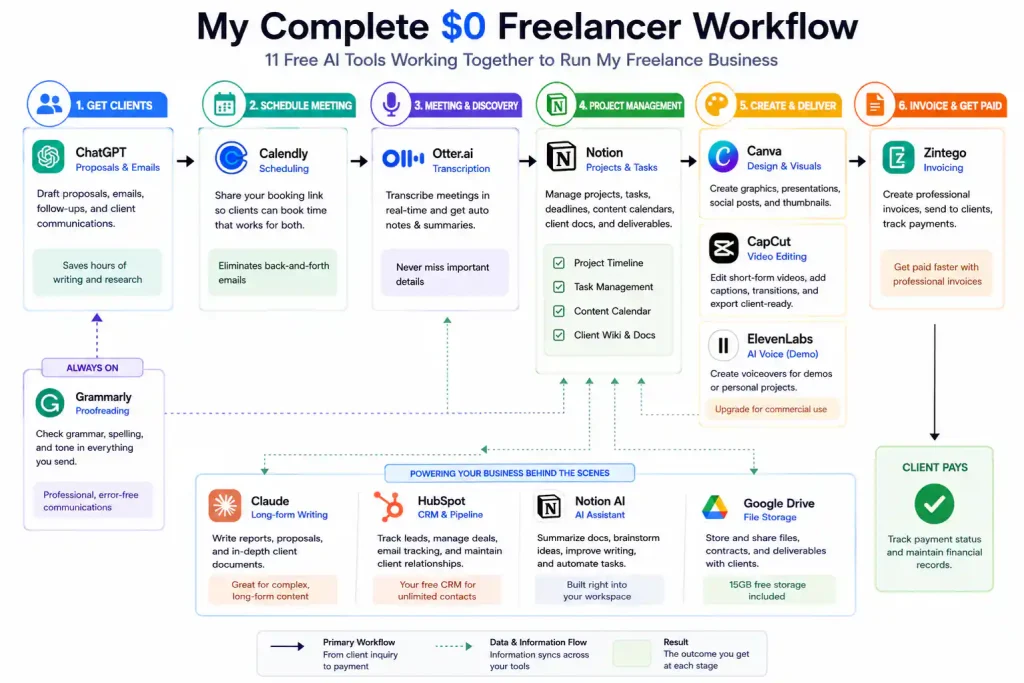
Above: How the 11 tools connect into a single $0 freelance workflow. Start with ChatGPT for proposals, manage projects in Notion, schedule with Calendly, and invoice with Zintego.
Total cost: $0/month. This stack replaces several paid tools that would otherwise cost a freelancer hundreds monthly. Your actual savings depend on which tools you currently pay for and your client volume.
❓ Frequently Asked Questions
Which free AI tool is best for a freelancer just starting out?
Start with ChatGPT (client communication), Canva (visuals), and Calendly (scheduling). These three cover the core freelance workflow — getting clients, looking professional, and managing your time — without any technical skills required.
Can I run a freelance business using only free AI tools?
Yes — for a solo freelancer, the 11 tools in this guide cover client communication, design, scheduling, transcription, project management, CRM, and invoicing at $0/month. As you grow, you’ll likely hit limits (Canva’s 50 lifetime AI images, ElevenLabs’ non‑commercial free tier, Otter’s 30‑minute conversation cap) that require upgrading or switching tools.
Are these AI tools really free for client work?
Most are, but not all. ChatGPT, Claude, Canva (within designs), CapCut, Calendly, Otter.ai, Notion, HubSpot, and Zintego all permit commercial use on their free tiers. ElevenLabs’ free tier is non‑commercial only — you need the $5/month Starter plan for paid client work. Grammarly is fine for checking client deliverables. Always verify each tool’s current Terms of Service.
Which free tool replaces hiring a virtual assistant?
Calendly (scheduling) + Otter.ai (meeting notes) + ChatGPT (client emails) + Notion (task management) together automate most of what a part‑time VA would handle. These four tools alone can save 5–10 hours per week for a typical freelancer.
What’s the best free CRM for freelancers?
HubSpot’s free CRM is the strongest free option for most freelancers — unlimited contacts, one deal pipeline, email tracking, and a meeting scheduler at $0. For creative freelancers who need proposals and invoicing in one place, HoneyBook handles that for $16/month.
Can I use Canva’s free AI images in client work?
Yes. Canva permits commercial use of AI‑generated content on the Free plan, as long as it’s incorporated into a design — not sold as‑is on a standalone basis. However, you get only 50 lifetime AI image generations, so use them strategically for hero graphics.
🏁 Final Recommendation: Free AI Tools for Freelancers 2026
You don’t need a software budget to run a professional freelance business in 2026. This stack covers client communication, design, scheduling, transcription, project management, CRM, and invoicing — all at $0/month. My recommended starting order:
- Week 1: Set up ChatGPT (proposals & emails) + Calendly (scheduling) + Canva (graphics).
- Week 2: Add Grammarly (proofreading) + Notion (project management) + Otter.ai (meeting notes).
- Week 3: Set up HubSpot (CRM) + Zintego (invoicing) + Claude (long‑form reports).
- Week 4: Add CapCut (video) + ElevenLabs (voice, demo only — upgrade if you have paid voiceover work).
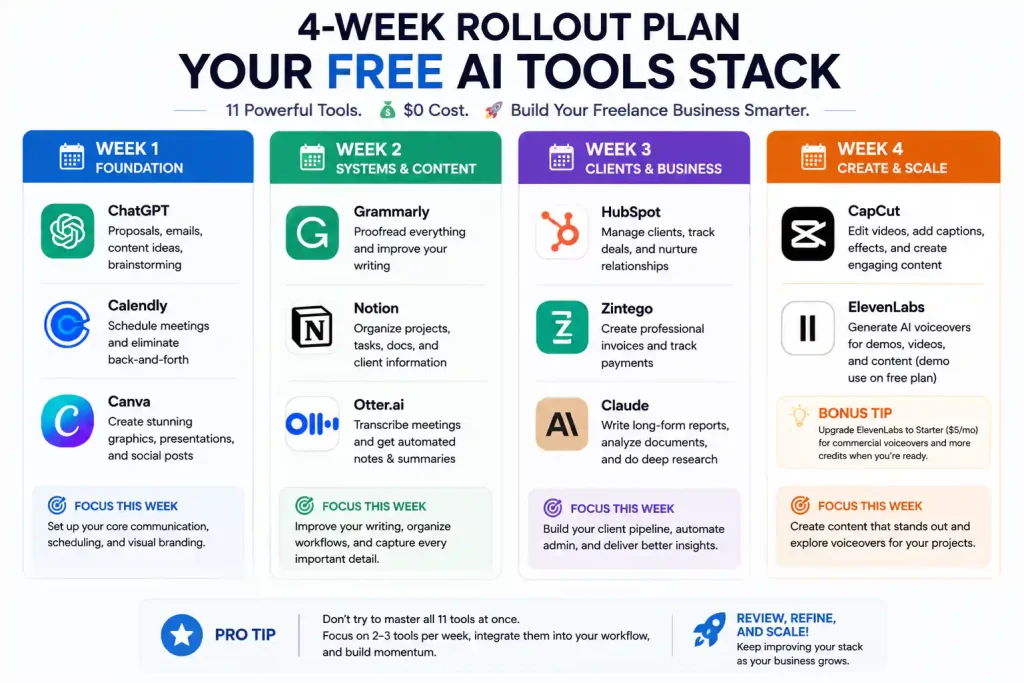
Above: The four‑week rollout plan. Don’t sign up for all 11 tools at once — master two or three per week and add gradually.
Master two or three tools well before adding more. The goal isn’t to collect AI accounts — it’s to deliver better client work in less time. For a broader overview of every worthwhile free AI tool, see my complete best free AI tools 2026 roundup.
🔗 Related Nexoda Tech Guides
- Best Free AI Tools 2026: Ultimate Tested Roundup
- ChatGPT Free Tier Limits 2026: Exact Message Counts from 30 Days
- Claude Free Tier Limits 2026: Real Message & Document Upload Test
- Canva vs Adobe Express 2026: Which Free Design Tool Wins?
- Free AI Tools for Small Business Owners 2026: 11 Tested
- Free AI Tools for LinkedIn 2026: Write Better Posts Without Paying
- AI Free Tier Restrictions: 7 Hidden Limits That Break Workflows
- Free AI Tools Without Credit Card
About the Author
Wubshet Tsegaye is the founder of Nexoda Tech and an independent technology writer. He has personally tested 40+ AI tools over 300+ hours, spending his own money to document real‑world free‑tier limits, hidden restrictions, and performance on slow, budget‑constrained internet connections. His testing is done on a mid‑range laptop with a 4G mobile connection — the same hardware and network constraints many freelancers and students face worldwide. No paid reviews. No guesswork. Just research‑driven content. → More about his testing methodology
This post contains no paid promotions. Some links may be affiliate links — we earn a small commission at no cost to you if you sign up. All tools were tested independently.
Last verified: May 16, 2026. Free tiers change frequently — always check the tool’s official pricing page before relying on it for business.
